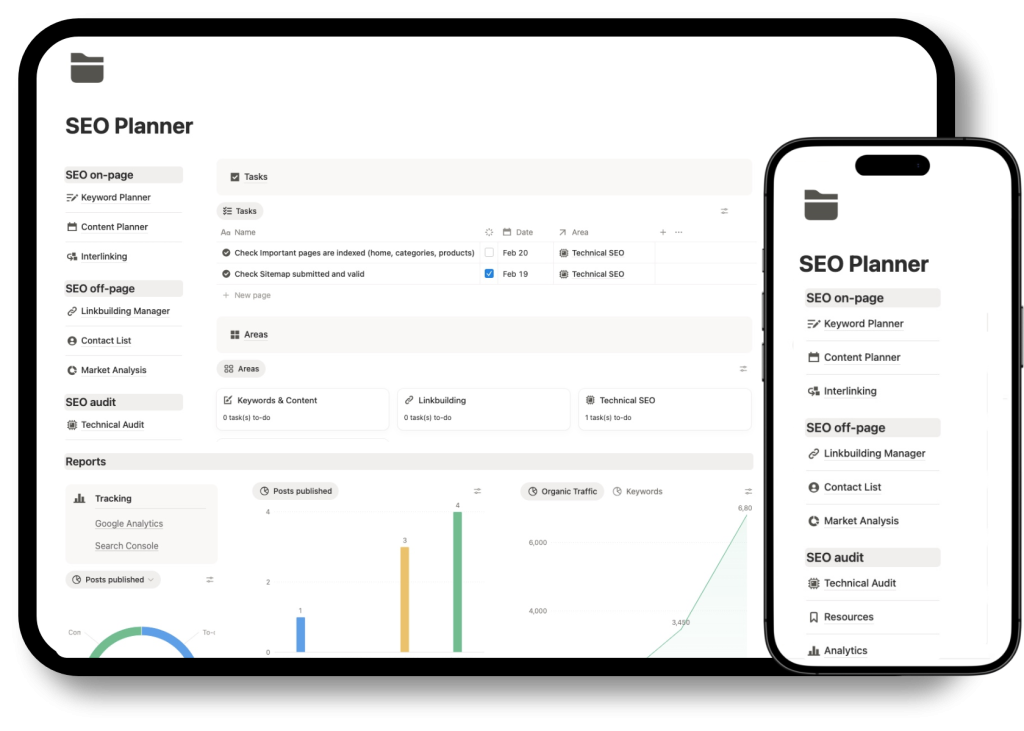
Internal Linking management is often the Achilles’ heel of SEO execution. If you’ve been doing SEO for a while, you know the nightmare: You have an Excel file with 500 rows exported from Screaming Frog, another tab with your editorial calendar, and a WordPress window open. Trying to connect the dots between your ‘Pillar’ articles and your ‘Satellite’ articles becomes a game of memory.
In this technical guide, I will explain how to configure an SEO internal linking checker tool using Notion to visualize hierarchies, control PageRank distribution, and detect orphan pages in real-time using relational formulas.
Why Excel is Not Enough for SEO Internal Linking & Architecture Management
The problem with managing web architecture in Excel is that it represents a flat list. However, Google does not crawl your website as a list; it crawls it as a graph of semantic relationships.
To understand why we need to migrate from spreadsheets to relational databases, we must review the critical concepts affecting web crawling:
- Internal PageRank Distribution: How authority flows from the Homepage to categories and product pages.
- Crawl Depth: Googlebot has a limited Crawl Budget. Pages buried more than 3 clicks deep lose relevance and crawl frequency.
- Topic Cluster Coherence: Semantic grouping of content to boost Topical Authority.
- Orphan Pages: URLs that exist but receive no internal links, rendering them effectively invisible to the bot.
Excel allows you to list these metrics, but it fails to visualize the dynamic relationship between them. Notion, being a relational database, allows us to simulate the website’s silo structure before implementation.
How I have configured my internal linking checker template

Step 1: Visualizing the SEO Architecture (Pillar Pages & Topic Clusters) in Notion
Configuring Visual Hierarchy
The first thing I implemented in my Notion SEO Planner was the visualisation of hierarchies using the Sub-items feature to replicate the directory or silo structure of the website.
Instead of having a simple “Select” property for categories, I set up the database to work like a toggle.
By activating sub-items in the content database, I obtain a tree view that allows us to visually audit Cluster Coverage:
- 🔻 [Pillar Page] Best Running Shoes(Hub / Level 1)
- ↳ [Money Page] Review: Nike Pegasus 41 (Level 2)
- ↳ [Info] How to wash running shoes (Level 2)
- ↳ [Long Tail] Best running shoes for heavy runners (Level 2)
This way, I can spot ‘content gaps’ at a glance. If I see that my ‘Trail Running Shoes’ pillar only has one child article attached to it, I can visually tell that this cluster is weak and that I need to write more supporting content before I can expect to rank.

Step 2: Detecting Orphan Pages with Formulas & Relations
This is where things get interesting. Visualising is fine, but I don’t want to count links manually. I want Notion to audit my website for me.
I’ve created a system of Bidirectional Relationships combined with mathematical formulas that act like a traffic light.
Configuring Relational Properties
I created a relation from the database to itself (Self-referencing relation), separating the link directions:
- 📥 Linked FROM (Incoming): Counts which internal URLs point to the current article.
- 📤 Links TO (Outgoing): Counts where we are sending authority to.
Automating Link Status
Every time I add an item to my database, Notion automatically calculates incoming and outgoing links.
And using Rollups (to count the number of relations) and conditional formulas, I created a semaphore alert system.
The formula code to audit incoming links:
/* Notion 2.0 Formula */
lets(
  count, prop("_Count Incoming"),
  style(
    if(count == 0, "🔴 CRITICAL: Orphan Page",
    if(count == 1, "🟡 Warning: Weak Linking",
    "🟢 Healthy: " + format(count) + " In-Links")),
    if(count == 0, "b", "b")
  )
)
Audit Interpretation:
- 🔴 CRITICAL: The page receives zero internal links. It is an orphan page wasting Crawl Budget.
- 🟢 Healthy: The page is well-connected within the architecture.
How does this work on a day-to-day basis?
I no longer need to run Screaming Frog every week. My workflow is as follows:
- I open my Linking Dashboard in Notion.
- I filter by the property: ‘Contains “0” links’.
- A list of ‘Orphan Pages’ or ‘Dead Ends’ (pages that don’t link to anyone) automatically appears.
- I spend 10 minutes editing those posts and connecting the cables.

Step 3: Evaluating Quality & Semantic Coherence of Internal Linking
Internal Link Spam (linking just for the sake of it) can be counterproductive. Google values the semantic context of the link.
By managing interlinking in Notion, we can use Board views (Kanban) grouped by Cluster. This allows us to audit Cross-Linking.
The Optimization Workflow:
- Filter by Cluster: Visualize only pages within the “Sports Nutrition” group.
- Check Outgoing Links: Verify if informational articles are correctly linking to their corresponding transactional pages (Money Pages).
- Avoid Cannibalization: Ensure that planned Anchor Texts for each link do not compete with each other for the same search intent.
From Task List to Internal Links Checker to Operating System
Managing Technical SEO in 2026 requires tools that allow you to visualize information architecture, not just list it.
By implementing this system in Notion, you move from having a simple “content calendar” to owning a Web Architecture Map that automatically audits the health of your internal linking, ensuring efficient PageRank distribution and preventing basic technical errors like orphan pages.
Implement This System Today
If you want to save the hours required to configure these formulas, relations, and hierarchy views, you can download the complete system I use to manage my niche sites.